
Pinia stores
The Stores tab is for inspecting Pinia stores registered in the app: name (id), state and getter field counts, and—after you select a row—a snapshot of state and getters that you can edit and write back where supported.
More on editing state and getters, and favorites for stores:
Top toolbar

Store search
The search field and Search by switch work like on other tabs. Search types can be preset in Options for Stores.
| Mode | Purpose |
|---|---|
| Name | filter by store name (local to the panel) |
| Key | match field names in state and getters (search runs in the page context) |
| Value | match field values in state and getters (also in the page context) |
Key and Value use a minimum query length (default 2 characters; configurable in inspector search settings).
Partial vs exact. If the query is not wrapped in quotes, substring matching is used (case-insensitive). Exact matching applies when the entire query is wrapped in double quotes "...".
Content search limits how many results are returned so very broad queries do not overload the page.
Status chips
Right side of Stores:
| Item | Purpose |
|---|---|
| N or N/M | Number of stores after filtering; with a non-empty search, M after the slash is the total stores in the last summary. |
| Favorites ★ | Overlap with favorited stores. Click opens Options (Pinia favorites). |
| Update | Refresh button, loading indicator, and time of the last successful summary (or text like Loading...). |
Before requesting a summary, the panel checks that the bridge to the page is available; if the context is unavailable, data is not requested.
Work area
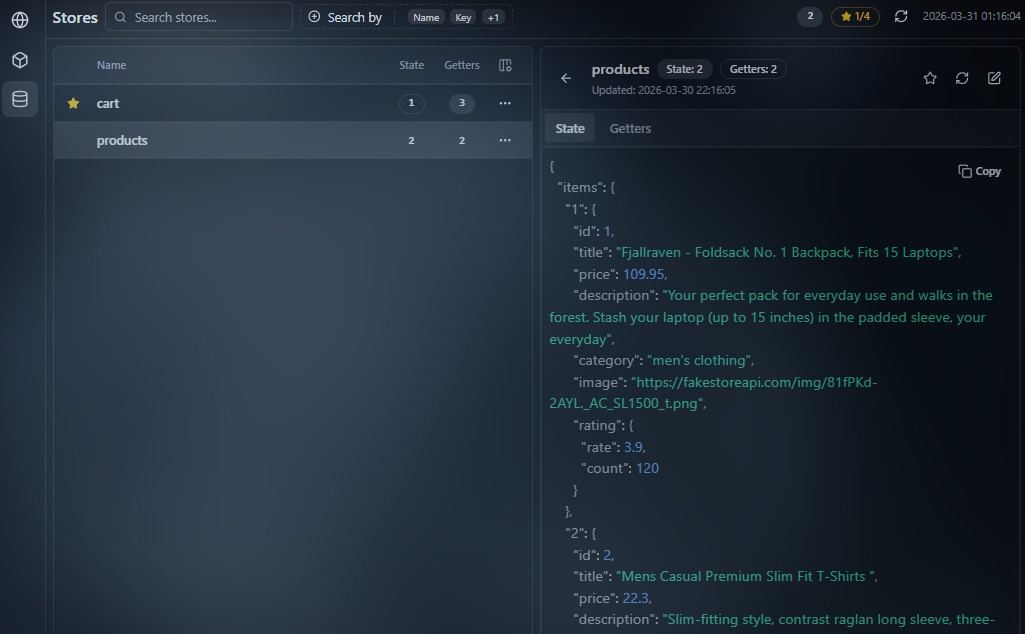
Store list
Left: the store table. Main columns (visibility in table settings):
- Name — display name of the store (baseId);
- State — number of keys in state (dash if none);
- Getters — number of getters (dash if none).
Rows expose a favorite star and a context menu. Favorites are stored in inspector settings — see Favorites.
Store details
Selecting a store row opens a detail panel for that store.
Summary header
The top of the panel shows:
- store name;
- number of State keys;
- number of Getters keys;
- an Updated: line with the timestamp of the last card data refresh.
Store data
Below that, tabs:
| Tab | Purpose |
|---|---|
| State | snapshot of reactive state; view and save changes |
| Getters | snapshot of current getter values in serialized form; view and limited editing depending on the scenario |
Only tabs that have data are shown.
The active tab is shown as JSON—text or tree—according to inspector settings.
Navigation
- ← Back closes details and returns to the table;
- Esc in edit mode discards edits;
- Esc outside edit mode returns to the list.
Controls
| Control | Purpose |
|---|---|
| Star | add or remove the store from favorites |
| Refresh | re-fetch the selected store’s data from the page; available outside Edit mode |
| Edit | enter edit mode for the active tab (State or Getters) |
Edit mode
After Edit, Refresh and Edit are replaced by Cancel and Save.
| Before editing | In edit mode |
|---|---|
| Refresh | Cancel — discard changes and leave edit mode |
| Edit | Save — apply changes to the app |
Changes are applied only after Save.
For State, the store’s current state is updated; for Getters, writing is only supported in valid scenarios, and limits depend on how the store is implemented.
The favorite star in this panel and in the table is described on Favorites.
Card data reflects a snapshot from the last request: changes in the app are not reflected automatically until you Refresh in the card or refresh the summary from the Stores top toolbar.
Display limits
Reading limits
- All-stores summary — lightweight: each store gets id, name, state / getter key counts, and a snapshot timestamp, without full value serialization.
- Selected store card — a separate request with serialized state and getters for display and editing.
State and getter serialization uses depth and size limits: cycles, functions, and special objects may be truncated or shown differently than in raw runtime.
Key / Value search hit lists are also capped.
Capacity
There is no fixed cap on how many stores appear in the table: typical Pinia summary responses list them all.
Unusual registration or extreme setups may be incomplete; whether writes succeed depends on the store—if save fails, use the UI message or the console.
How it works
When collection starts
The injected Pinia module hooks in after Pinia is detected on the page (same idea as Props: Vue and the inspector must be active).
If Pinia is not installed or not initialized when you open Stores, the list stays empty or you may see a load error.
What is monitored
- Summary — ids, names, and field counts for the table only.
- Single store details — full serialized state and getters when you drill in.
That keeps a fast list separate from heavy reads for one store.
Messaging
The panel does not read Pinia directly: it sends a message to the page context where registered stores are available.
// Illustration: summary request — store id, name, and key counts only
const response = await bridge.send({ type: 'PINIA_GET_STORES_SUMMARY' })
// response.summary — map storeId → { id, baseId, stateKeys, getterKeys, … }

const detail = await bridge.send({
  type: 'PINIA_GET_STORE_STATE',
  storeId: 'my-store-id',
})
// detail.state, detail.getters — data for display and editing
Key/value search (PINIA_SEARCH) runs in the page and returns only matching store ids.