
Display modes
Options → General → Display Mode chooses where the Vue Inspector UI lives relative to the page: Overlay on the page or DevTools tab inside the browser’s developer tools.
DevTools mode requires the installed extension (Chrome / Edge). Standalone disables that toggle: the inspector only runs as an overlay; there is no DevTools panel.
After changing mode the extension suggests reloading the page.
Overlay — dock, pill, and size
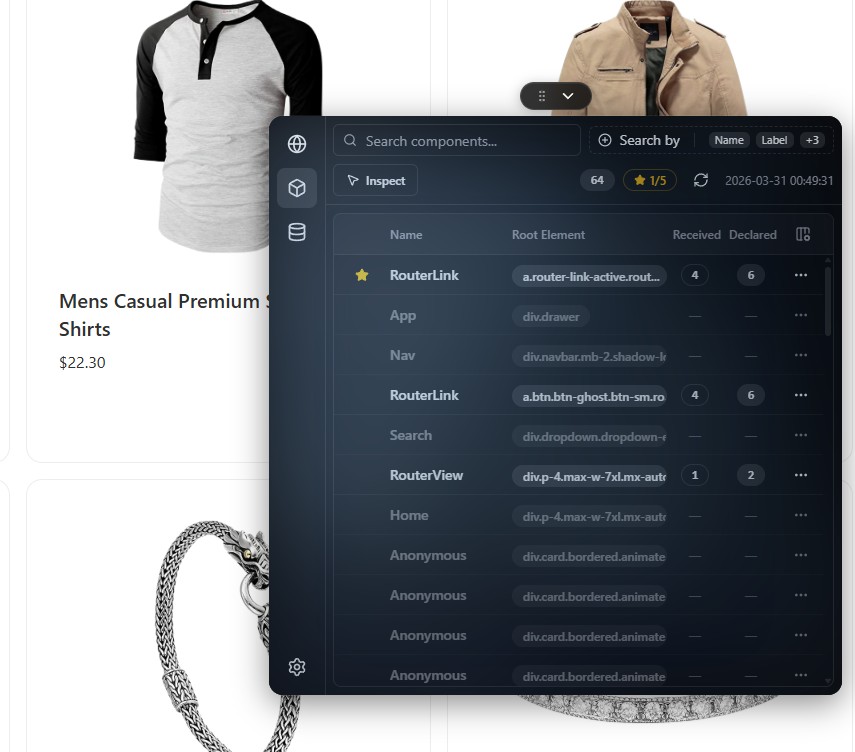
Overlay embeds the panel above the site in its own “window” in the tab.
The pill (compact handle with drag affordance and chevron) is the main control:
- Chevron expands/collapses inspector chrome.
- Drag handle moves the block: near window edges it snaps top/bottom/left/right; centered becomes a floating framed window.
Default first open: docked to the bottom — full-width strip with the site visible above (resize height). Classic bottom dock.
Resizing:
- Docked: grab the outer edge (for bottom dock, the top border) to change height (bottom/top dock) or width (left/right).
- Floating: corners and edges resize freely.
Position, dock side, and floating geometry persist between visits (within browser/extension limits).
Whether the pill shows on a site can also depend on Auto Run lists — see Auto run.
DevTools tab
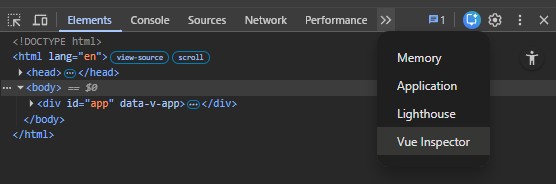
Extension only. The inspector opens as a separate tab inside native DevTools (F12 / Inspect), not as a floating overlay.
Useful if you keep tools next to Console/Network or prefer not to cover the page. Pill dragging applies to Overlay only; DevTools layout follows the browser panel.
After switching to DevTools tab, reload and open DevTools — you should see Vue Inspector among panel tabs.
Reload (F5): the inspector tab reconnects to this tab’s page context. No extra enable step.
Versus Overlay: while overlay is collapsed, some page-side flows may not get a full channel to the expanded panel — Breakpoint / Mock may need you to expand first. In DevTools mode the inspector is already an active DevTools surface, so Network interception works immediately after reload.
Network after F5: the request list clears and refills as the page reloads, but Network features (intercept, breakpoints, mocks) are ready from the start — no extra click to “wake” networking.
See also
- Auto run — when the overlay pill auto-shows
- Customize — theme and panel background
- Browser extension