
Customize
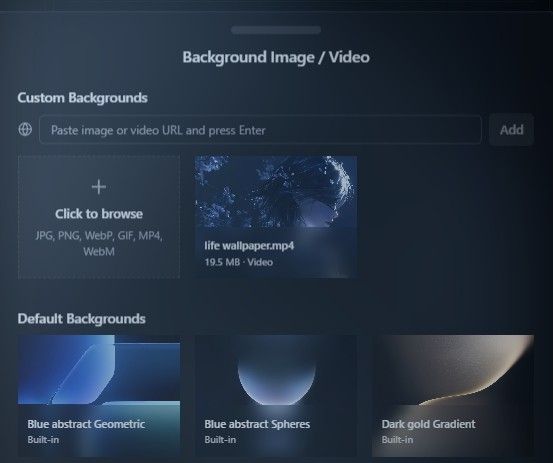
Options → General → Customize controls the main inspector look: theme, background media, and how it is displayed. You style the tool, not the site content.
Extension vs standalone
Fields (theme, file / URL, opacity, blur, noise, position, scale) match. What differs is where file bytes go and whether a total quota applies.
| Extension (Chrome / Edge) | Standalone | |
|---|---|---|
| Where uploads live | Media copies in extension IndexedDB (separate stores for wallpaper and saved files). | Media goes into the app’s unified local store (central quota). |
| Size limit | No app-enforced “N MB for media”; real cap is IndexedDB / storage quota for the extension profile. | Hard 30 MB total for decorative media in standalone storage — saves are blocked if the new total would exceed (error like “Media limit exceeded”). |
| Usage meter | The X MB / 30 MB counter does not show in Customize. | Customize shows usage of the media store (MB of 30 MB) so you see remaining headroom. |
URL backgrounds do not count like uploaded files in local quota, but for offline predictability local files within quota are often simpler (in standalone respect 30 MB total).
Theme
Dark / Light toggles inspector color scheme.
Background (Image)
Image sets the panel background. Sources — File and Link:
- File — local asset via Browse or previously saved copies (extension: IndexedDB; standalone: unified 30 MB store — table above). Presets: Settings management.
- Link — URL to media.
Supported: still images, animated GIF, MP4 video backgrounds.
Background rendering
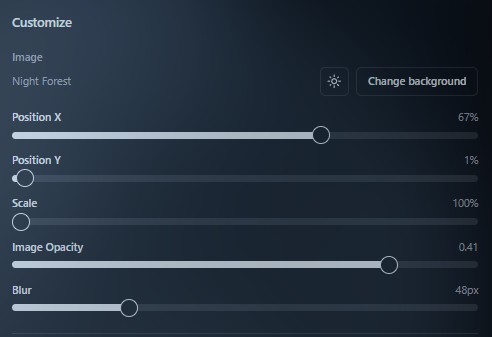
| Control | Role |
|---|---|
| Image Opacity | Background layer transparency vs UI chrome. |
| Blur | Blur strength. |
| Noise Intensity / Opacity | Grain overlay strength/visibility. |
| Position (X / Y) | Pan the image. |
| Scale | Zoom 100–200%. |
Combined, you can keep background subtle or decorative without hurting readability.
Saved files
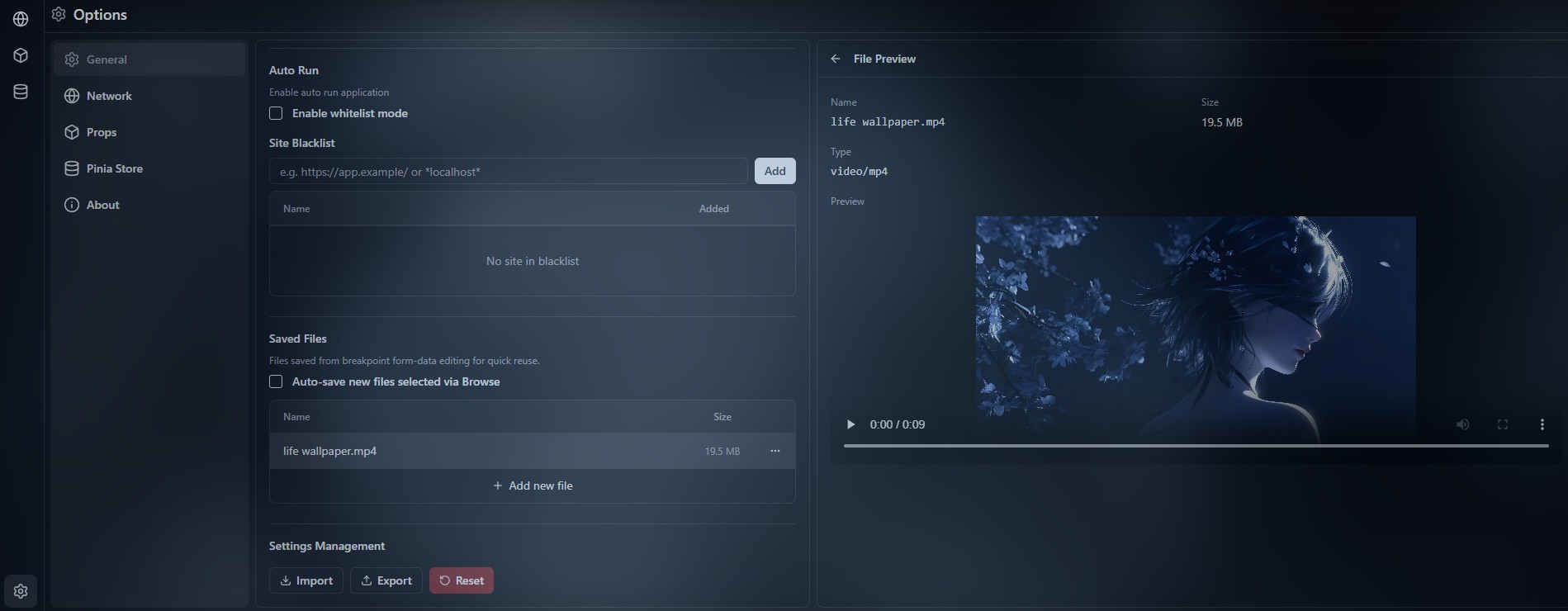
The Saved Files section on the General page keeps local media copies for reuse.
They are used in several places:
- picking a background file in Customize;
- File fields in Form-data at a Network breakpoint;
- anywhere else the inspector needs to re-select a file you already saved.
Extension vs standalone storage rules match the table above: same idea, different backing store and total capacity.
File list
The main control is a table of saved files.
Through it you can:
- browse saved entries;
- delete files;
- reuse them in supported editors.
The same table lists Saved Files entries and Customize background media (wallpapers) together — one shared inspector media store (where it lives and any size cap still follow the Extension vs standalone table above).
Auto-saving new files
Auto-save new files selected via Browse controls whether new files are added to the list automatically.
When the option is on, a file is written to Saved Files when:
- it was chosen via Browse;
- there is not already an entry with the same name + size pair.
This applies, for example, when editing Form-data at a Network breakpoint.
Use in Form-data
When you pick a file from the list in the Form-data editor, the draft stores a service reference of the form __fileId:….
When changes are applied, the injected script uses that id to attach the real file bytes to the request.
Details: Traffic interception.
See also
- Display modes
- JSON Mode — Classic vs Advanced JSON editor (also under General).
- Settings management